
NEW EXCLUSIVE GUIDE: "Your mall mapped for maximum revenue" ➡️


By default, the most commonly used images/icons and 3D models will be available in the drawers.
You can quickly access the libraries for both images/icons and 3D models through the Quick add field.
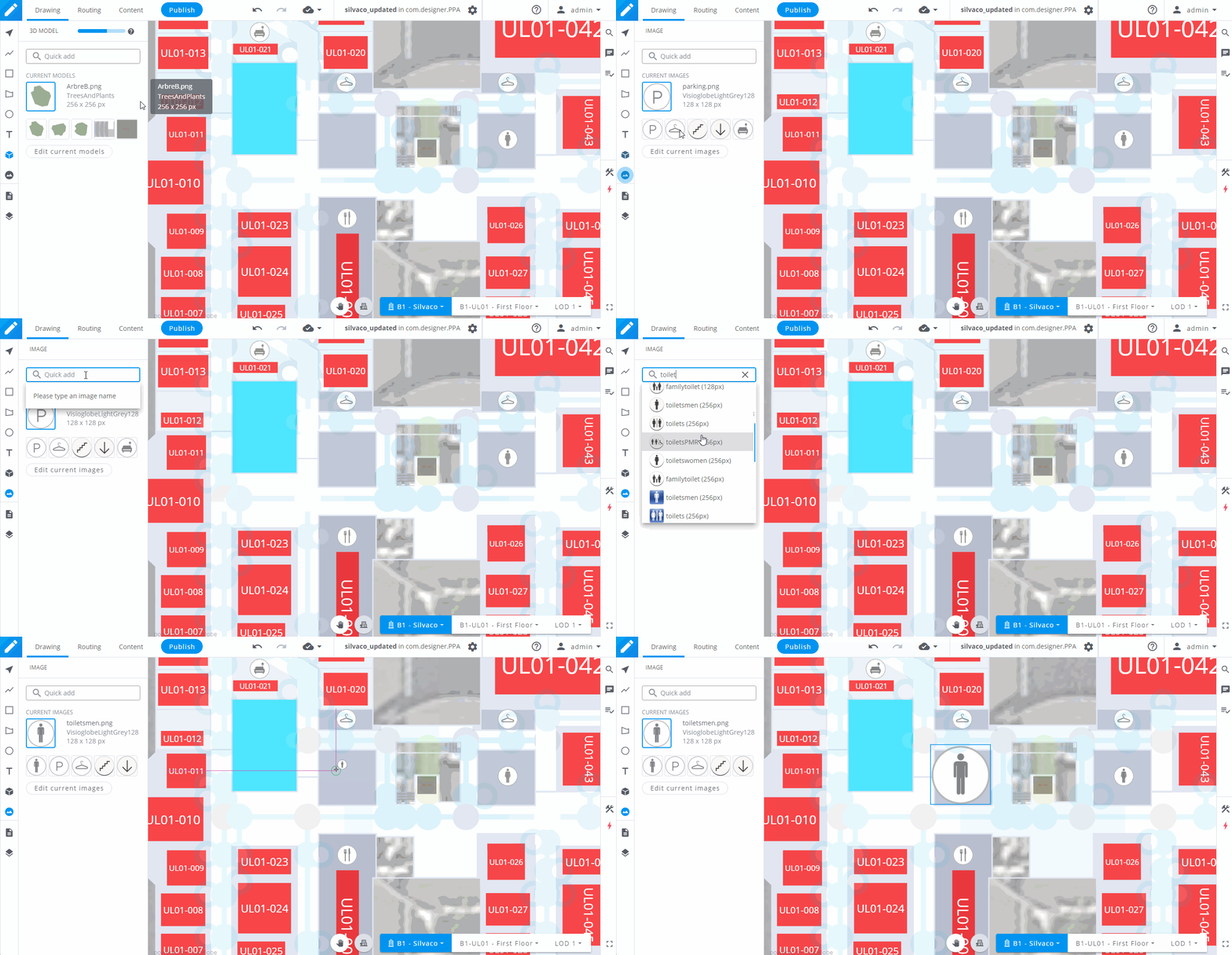
You can access libraries for both 3D models and images/icons by clicking on the Edit current... button.
Once the librairies' dialogue is opened, you can navigate through the different suggested libraries on the left of the window.
You can preview a 3D model or an image/icon by clicking on it. To add it to your current selection, simply click on the Add button and start using it on the drawing canvas.
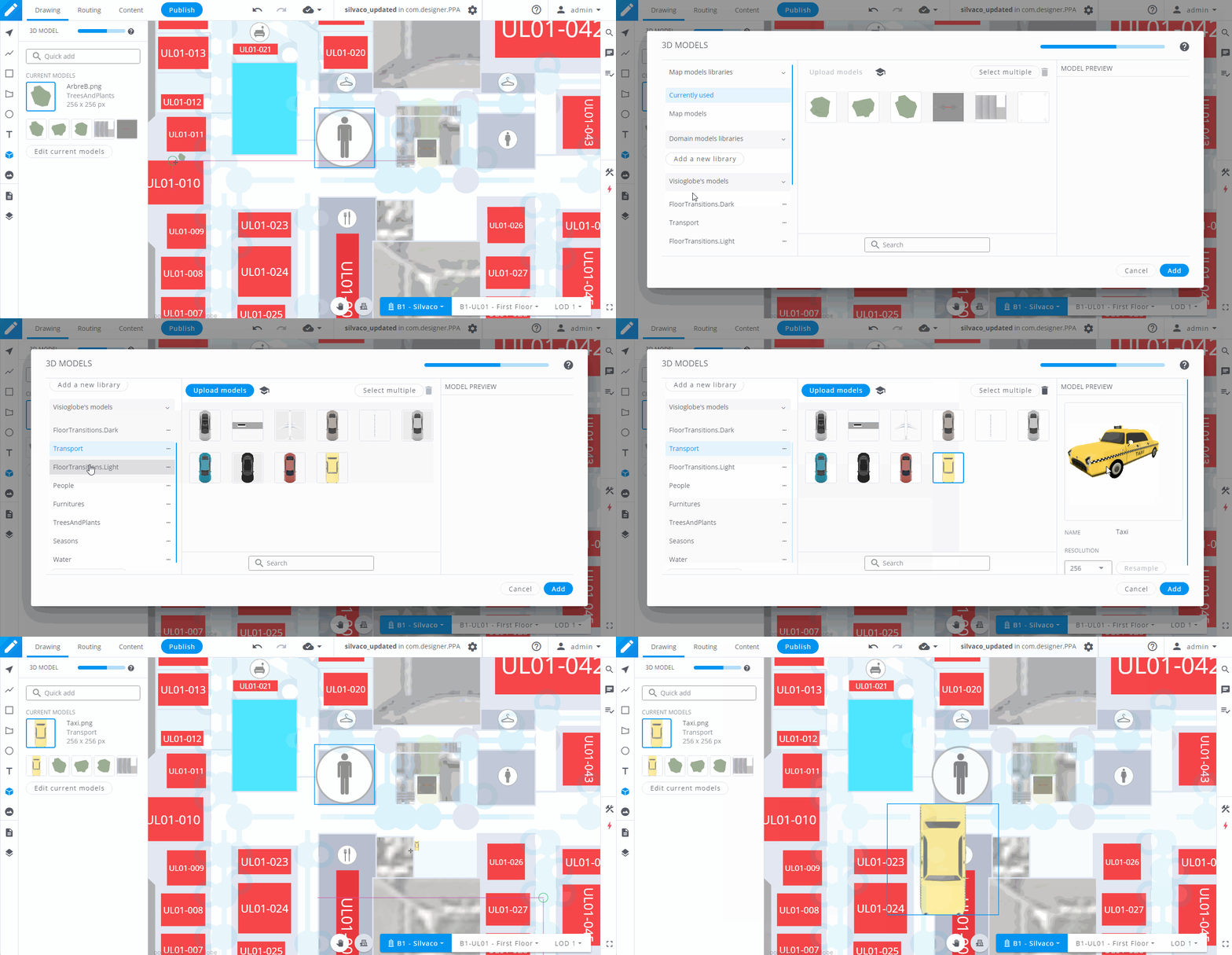
You can also add multiple 3D models or images/icons at once by clicking on the Select multiple button and choosing which 3D model or image/icon you want to add to your current selection. When you are happy with your selection, click on the Add button.
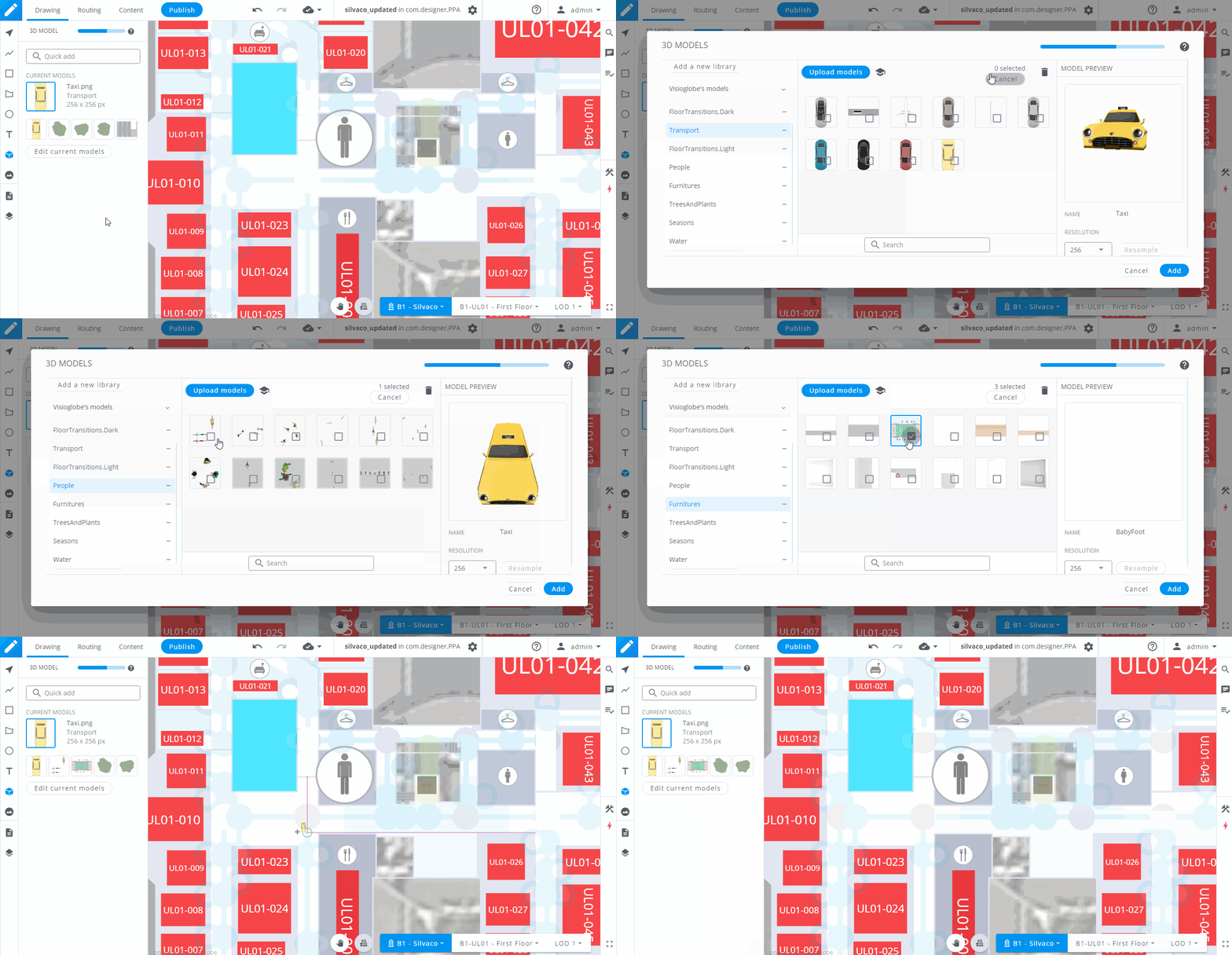
You can even select multiple models across multiple libraries.
To replace a model or an icon/image, select it with the tool in the left bar and click on the Replace button. Select the new model or icon/image and click on the Replace selected icon button.
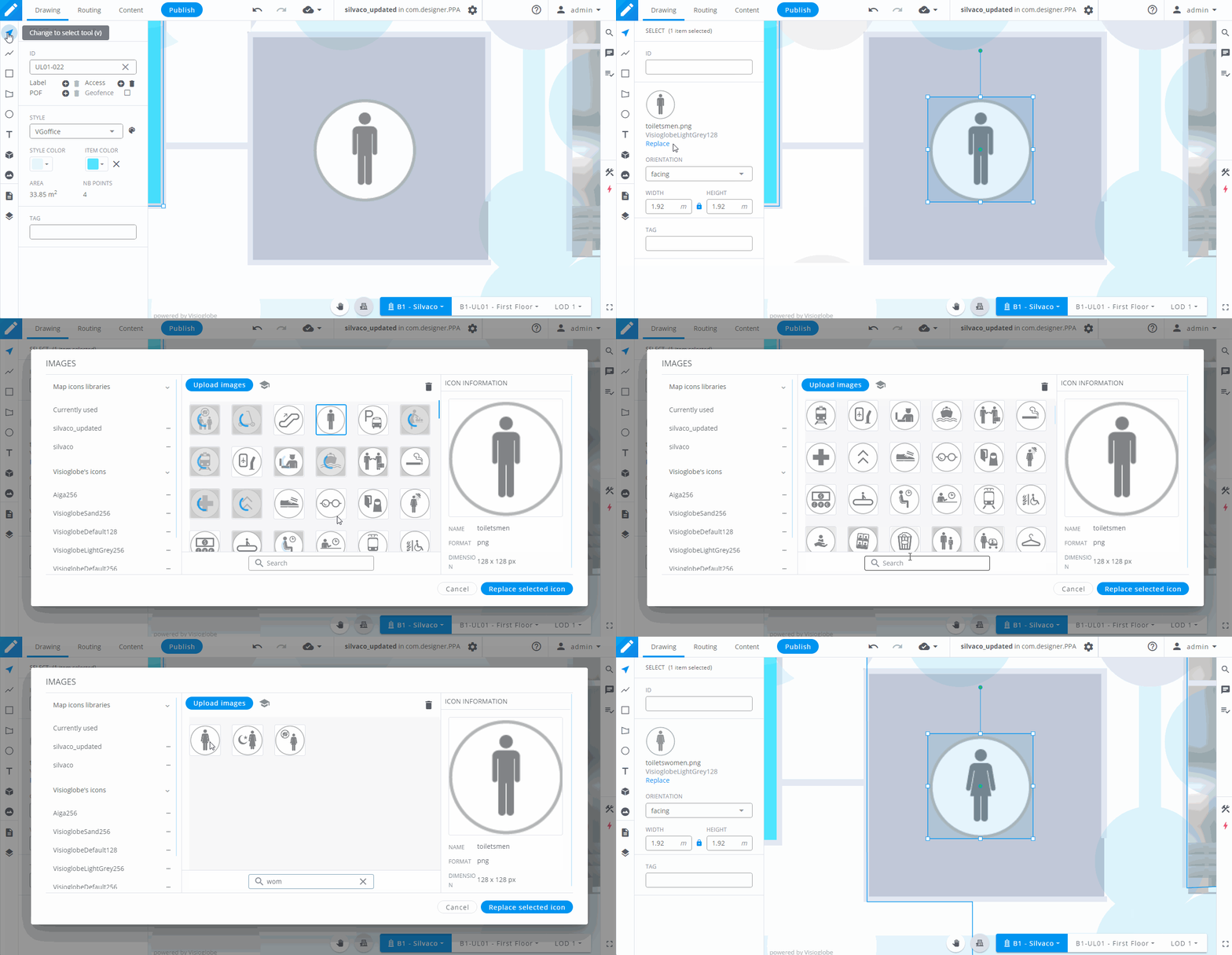
You can select the orientation of your icon. Click on it, then choose one of these three options:
Facing : the icon will be displayed in 3D, and will always face the camera.
Flat : the icon will be displayed in 2D, and will follow the camera's orientation.
Fixed : the icon will be displayed in 2D, and its orientation will not move.
While you cannot import your own custom 3D models — only the models available in VisioMapEditor's built-in libraries can be used — you can import your own custom icons.
Format requirements:
We don't recommend using icons larger than 256×256 pixels — it won't improve visual quality in the final application, but it will unnecessarily increase your map's file weight.
